Showing posts with label Autoenrollment. Show all posts

Wednesday, July 8, 2015

Using Centrify with the Microsoft CA and the Autoenrollment GPO for your UNIX/Linux/Mac PKI Certificate needs

Background

Active Directory provides a Public Key Infrastructure (PKI) capability with the Microsoft Certificate Authority.  This is quite convenient to system administrators especially when combined with Group Policy since it allows for the automation of the Certificate lifecycle:  issue, renew, revoke, supersede templates, etc.


We've discussed this before, but Centrified clients can also take advantage of Certificate auto-enrollment.  This can happen automatically or manually using the adcert utility.

How it works?

The process works as follows:
  1. When a system is joined to AD using Centrify, as part of the join the system will read the domain controller's SYSVOL for Group Policies.  The system may download the trust chain (containing the trusted CAs or the local root CA) and any revocation information to the /var/centrify/net/certs folder.
  2. If the auto-enrollment policy that applies to the system points to a usable template, the agent will attempt to enroll automatically when the GPO refresh interval starts.
    Note: there are different auto-enrollment GPOs depending on the version of Active Directory.
  3. The agent will use the computer's credentials with the adcert utility and connect to the CA or Intermediate CA to obtain a certificate set for autoenrollment.
  4. adcert will issue pkcs10 request for each template, if an issuing CA is found for the templates in question and the certificates, chain and private key (if defined exportable by the template) will be placed in the /var/centrify/net/certs folder with this format:
    [name of template].cert
    [name of template].key
    [name of template].chain
Once the certificate is in your system, you may be able to use it as is, or you may have to change the encoding using OpenSSL tools.

Here are two video examples:

Using Auto-enrollment for your Apache HTTPS certs


Using Auto-enrollment with Mac OS X Systems


Friday, February 13, 2015

Mac OS X Extras: Using Centrify and your Windows Infrastructure to provide 802.1x EAP-TLS to Mac OS X Systems

Background

Secure access to Wifi or Ethernet networks is a goal of any security conscious IT infrastructure team, however diversity of platforms makes this goal very hard to achieve, especially when organizations are looking to standardize but have diverse client platforms.

In a Windows world, capabilities such as Active Directory Certificate Services, Group Policies, the Network Policy Service and Windows clients make this goal relatively simple.  The popularity of Mac Workstations has forced many organizations to face this challenge.

The good news is that Centrify has worked very hard to make sure that IT Infrastructure folks can leverage their existing Windows infrastructure to solve this challenge on the macs.
The challenge for any technical lead is that the expertise required just to meet the prerequisites is going to be scattered all over the organization; this means that it's time to flex the ability to coordinate and get people to work together.  Hopefully this post provides a lot of clarity.

How easy is it to implement?

It is as easy as enabling one of the Centrify-provided GPOs for Mac OS X.  Specifically the "Computer Configuration > Policies > Centrify Settings > Mac OS X Settings > 802.1x Settings" and you can pick your flavor:
  • Enable Machine Ethernet Profile
  • Enable Machine Wi-Fi Profile
  • Enable User Ethernet Profile
  • Enable User Wi-Fi Profile
However, this entry would not be useful if I just show you that you can enable the GPO, perform a policy refresh and just like magic: network access.

What I've noticed from prospects or customers that are looking to test these capabilities is that they don't understand all the moving pieces that need to be in place in order for this to work. 

In this post we'll use a checklist to make sure that you understand what needs to be in place to be successful.  

Note:  If you already have 802.1x EAP-TLS running with your Windows infrastructure today, you are very well-positioned for success.

Pre-Requisites

Building Blocks

Active Directory and Windows Services:  There are several ways to accomplish this goal, but in this particular instance, because our goal is to consolidate processes, knowledge and infrastructure, we are leveraging Windows capabilities like Active Directory, AD Certificate Services and the Network Policy Service.  AD Groups will be key to provide access controls;  OUs will determine the scope of GPOs to be used.

Public Key Infrastructure:  PKI is needed to provide the encryption, non-repudiation and authentication between the back-end infrastructure (Active Directory) and the client (Ethernet or Wifi).  The key here is the certificate life-cycle management, this is where Windows PKI uses Group Policy.
PKI Disclaimer:  PKI is not joke.  Any proper implementation needs to provide the assurances that PKI is aligned with your security policy.  If your organization does not have a policy for PKI (general assurances, handling of private keys, policies, templates,  Root and SubCAs) consult an expert.

A Policy/Configuration Management Engine:  Group Policy provides the rules and the enforcement for configuration items and even provides certificate auto-enrollment - a way to manage the certificate lifecycle (issuance, renewal, revocation, etc); in addition, GPOs will be the way that Centrify will provide the Apple profile information.

Network Policy Service: The NPS service on Windows provides the services like Remote Authentication Dial-in User Service (RADIUS) and the policy rules to enable 802.1x.  The NPS Service interacts with Active Directory to leverage groups and attributes.

802.1x-Capable Network Devices:  Any modern switch or access point supports 802.1x EAP and RADIUS.

Centrify Agent for Mac OS X:  This use case showcases the power of the Centrify agent.  Not only it leverages its ability to integrate with AD, but to use advanced services and perform this cohesively within the MacOS platform.  Key capabilities:  Certificate Auto-Enrollment, System Profiles, GPO Engine.

The Lab

  • For AD and PKI:  Modified Microsoft Test Lab Guide:  Provides the corp.contoso.com domain with a running Microsoft CA.  The RootCA (corp-DC1-CA) certificates are deployed using GPOs.
    Translation:  A common Certificate Authorithy with the proper Certificate Revocation publication methods needs to be provisioned. I did not set APP1 as a SubCA.
  • For RADIUS and Policies:  I'm piggybacking on my APP2 Windows 2012 server
  • Network Devices:  I'm using Cisco small business (300 series) switch and a TPLink (TL-WA90x) Wireless Access Point.
  • Mac Client:  Old Macbook running 10.7 and Centrify 5.2.1

Basic Checklist
OS X System is Centrified
Centrify agent is connected  (run adinfo -m)

PKI Checklist
All Systems have a Root CA in their trust chain?
The Network Policy Server has a computer certificate?
A proper 802.1x certificate template was set up for Mac Systems?
The Mac Auto-Enrollment GPO has been properly deployed?
Was the computer Certificate on the Mac based on the proper template?

You may need to look in the CA's Issued Certificates.
With PKI it's all about consistency.  All systems trust the Enterprise CA; All Certs are Issued by the CA or SubCAs and Programs (like NPS) are using the same trust chain.


NPS/Network Device Checklist
RADIUS clients have been set up properly on the NPS Server
RADIUS servers are properly configured on the network devices
Is there connectivity between RADIUS clients and servers?

Connection Request Policies are set up appropriately (Conditions/Settings)
Network Policies are set up to Allow access based on Conditions
Clients Meet the Conditions
Any conditions added (like AD group membership) must be met in order to have successful connections.
For example, if you're using a condition in which your Mac has to belong to a group called "Mac Workstations 802.1x" you can use the 'adquery user -A computername$ | grep MemberOf'  command to enumerate the AD groups that the computer belongs to

$ adquery user rpmacbook$ -A | grep memberOf
memberOf:corp.contoso.com/Mac/Corporate/Mac Workstations 802.1x,corp.contoso.com/Users/Domain Computers

802.1x Mac Group Policy
Is the Mac System Wifi-capable?
Wifi SSID is correct?
Template Name is correct?
The template Display Name may be different than the template Name
Has the policy been refreshed?  (adgpupdate - remember replication!)
System Preferences > System > Profiles contains payload?

Connected?


Video Playlist

Wednesday, February 11, 2015

Mac OS X Extras: Using Centrify and AD GPOs to Manage Portable Home Directories

Background

In OS X it is possible to set up a mobile user account that provides synchronized home folders, one on your Mac and one on the network account server. With Centrify, these "portable home directories" can leverage the user's existing Windows home directory to consolidate information.  Centrify allows the use of AD Group Policy to manage Portable Home Directories.

Assuming you have a Centrified MacOS X system:

Planning

At a high level, these things need to be thought out:
  • Windows home directories:  There are countless resources on this topic.  Home folders have to be created, and then assigned to users.  Keep in mind permissioning as well.
  • Understand the version(s) of OS X in your environment and the mobility settings behavior:  Apple has modified the implementation of mobile accounts over several versions.  The advantage is that Centrify provides a GPO that considers multiple versions of the OS:
  • Correct GPO scoping:  In this example we use loopback processing, however, based on your deployment, you may have multiple GPOs that apply to different AD principals.

Implementation
  1. Open GPMC and edit the Centrify GPO for OS X systems.
  2. On the left pane, navigate to "Computer Configuration > Policies > Centrify Settings > Adclient Settings" and in the right pane double click the "Enable Auto Zone user home directory (Mac OS X)"  and enable it.  This GPO modifies the auto.schema.use.adhomedir parameter in the /etc/centrifydc/centrifydc.conf file.
  3. Navigate to "User Configuration > Policies > Centrify Settings > OS X Settings >   Mobility settings" and in the right pane double click the "Use version specific settings" GPO and enable it.
  4. Based on the version of OS X that you have (in my example Mavericks 10.9) go to the corresponding folder (e.g. Mac OS X 10.8/9 settings) and enable the "Configure mobile account creation" - set it to enabled and check the "Create mobile account when user logs into the network"  check-box.
  5. To make sure the GPO is refreshed on the Mac OS X client, just run the adgpupdate command.
Verify
  1. On a Windows system with Active Directory Users and Computers (ADUC), open your test user account's properties and go to the Profile tab.  Make sure the home folder is set up appropriately for your environment.
  2. Sign-in to your Centrified OS X system, you'll see the following:
    Upon login, the user is prompted to create their portable home directory.
Adjust

Adjustments will be based on your environment.  Here are some general items:
- What happens when accounts expire?  (should mobile home directories be deleted?)
- Home folders:  what items will be skipped? What items will be explicitly synchronized?
- Synchronization settings:  By default every 20 minutes automatically.
- Preference Sync rules, etc.


Lab Video

Sunday, September 21, 2014

Utilities: adcert - a UNIX/Linux/Mac Microsoft CA PKI client

Background

Public Key Infrastructure (PKI) is the key building block for many IT capabilities and has been around for a long time.  It is poorly understood.  Let's start by defining some key terms:

PKI - Public key infrastructure (or standard x.509) defines the infrastructure, policies and usage of digital certificates.

Digital Certificate - a digital file pair that allows us to implement capabilities like
  • confidentiality - making sure data stays secret (at rest and in transit) 
  • integrity - making sure a message has not been tampered with in transit
  • non-repudiation - making sure that a party is who they say they are

Certification Authority:  A trusted computer that governs the policies, issuance, revocation and workflow of digital certificate operations.  There are Root CAs, Intermediate CAs, and Registration Authorities.  These roles (although NOT recommended) can be satisfied by a single system.

Certificate Policies:  Define how a certificates is going to be used, issued, revoked, etc.
Certificate Revocation:  When a certificate is revoked (e.g.  user is disabled, or the computer role changes, certificate expires or is replaced), the revocation protocol is used.  The legacy protocol is certificate revocation lists (CRLs), this has been replaced by the Online Certificate Status Protocol (OSCP).

PKI is all about the Trust Model and the standard as of how certificates are going to be handled.  My advice is that standing a CA in an enterprise is a process that should not be taken lightly.  The technology is the easy part.

For a great blog on PKI from the Microsoft PKI experts, go here:  http://www.css-security.com/category/public-key-infrastructure/

Challenge:  Managing the Lifecycle

Once a PKI infrastructure is established, in a Windows environment the lifecycle of issuing, revoking, renewing and provisioning certificates is very simple:  It can be done via self-service or with workflow, but we'll focus on the automatic method - using Group Policies.

It's all about simplicity:  The group policy client will check if either the user or computer needs a certificate, the PKI client will do the rest.  If a computer belongs to an OU that has a GPO for PKI certificates, there's a usable certificate template and the right permissions are in place, the certificate will be issued and provisioned to the computer.  Depending the policy, a few weeks before the certificate is revoked, the certificate will be renewed.

We already outlined these steps with the Mac platform.

adcert:  Centrify's hidden gem

For any PKI expert, adcert is a gem.  Why?  The variability of UNIX and Linux platforms and the evolution of them have not produced several basic standards as of how certain things are going to be done.  Since Centrify focuses in maximizing the investment in Active Directory with the Centrify Suite the answer is simple:  Use the Microsoft CA.

adcert is an Active Directory PKI client that works on Unix, Linux and Macs.  It also can be combined with Group Policies so the lifecycle can be managed the same way as in Windows.

adcert must be run as root and it exists in /usr/share/centrifydc/sbin.  Certificates (CRLs,  are placed in the /var/centrify/net/certs folder.
Some key switches:

-e  enroll certificates for this computer
-u <user>  - retrieve the certificates for the user.  In UNIX/Linux user GPOs are not enabled by default.
-m retrieve certificates for the computer. There has to be a usable certificate.

Example - to enroll the computer-based certificates for a computer:

$ dzdo /usr/share/centrifydc/sbin/adcert -e -m -V
Certificate AutoEnrollment for suse1$@CORP.CONTOSO.COM in domain CORP.CONTOSO.COM
Retrieved 17 templates with client or server authentication
Check template Administrator
Check template Centrify-Autoenroll
Check template Centrify-Autoenroll-Macs
    autoenrollment is allowed
Check template ClientAuth
Check template DomainController
Check template DomainControllerAuthentication
Check template KerberosAuthentication
Check template MacAutoenroll
    autoenrollment is allowed
Check template Machine
Check template OfflineRouter
Check template RASAndIASServer
Check template SmartcardLogon
Check template SmartcardUser
Check template User
Check template UserSignature
Check template WebServer
Check template Workstation
2 templates found with autoenrollment set
Checking certificate template Centrify-Autoenroll-Macs ...
    certificate and private key exist on computer
    revision (100) matches value in template
    expiration is Mon Sep 21 13:00:58 2015 GMT
    certificate public key matches private key
    No OCSP url in AIA section of certificate.
    ocsp operation not performed
    certificate is valid
Checking certificate template MacAutoenroll ...
No issuing CA found for template MacAutoenroll.
No CA's found for all templates requiring new/updated certificates: [MacAutoenroll].
1/1 templates requiring a new certificate could not have one issued.

The only usable template is the one I set up for Mac Autoenrollment in a previous lab.  The contents of the /var/centrify/net/certs shows:

$ ls -l
total 12
-r--r--r-- 1 root root 2069 2014-09-21 09:10 auto_Centrify-Autoenroll-Macs.cert
-r--r--r-- 1 root root 3357 2014-09-21 09:10 auto_Centrify-Autoenroll-Macs.chain
-r-------- 1 root root 1671 2014-09-21 09:10 auto_Centrify-Autoenroll-Macs.key
dzdo cat auto_Centrify-Autoenroll-Macs.cert
-----BEGIN CERTIFICATE-----
MIIFyjCCBLKgAwIBAgIKIiSOLwAAAAAAHDANBgkqhkiG9w0BAQUFADBaMRMwEQYK
CZImiZPyLGQBGRYDY29tMRcwFQYKCZImiZPyLGQBGRYHY29udG9zbzEUMBIGCgmS
JomT8ixkARkWBGNvcnAxFDASBgNVBAMTC2NvcnAtREMxLUNBMB4XDTE0MDkyMTEz
MDA1OFoXDTE1MDkyMTEzMDA1OFowITEfMB0GA1UEAxMWc3VzZTEuY29ycC5jb250
b3NvLmNvbTCCASIwDQYJKoZIhvcNAQEBBQADggEPADCCAQoCggEBANCZDHWJaHKR

Understanding the benefits

The key here is process consolidation and cost savings, especially for internal certs.  The Microsoft root CA is trusted by all domain-joined computers, this means that Unix, Linux and Mac computers can easily participate in getting their own SSL, 802.1x, Code Signing and other types of certs;  all with a single infrastructure and consolidated process.  That is power.

Video - Using adcert (5:18)


Friday, July 4, 2014

Mac OS X Extras: Computer Certificate Auto-enrollment

Background

Digital Certificates have an important place in a properly managed enterprise.  From an infrastructure perspective, they can enhance authentication and provide encryption for Ethernet and Wifi Networks.
Centrify for Mac OS X has built-in capabilities to enable 802.1x authentication leveraging Group Policy but it does require that the computer has a digital certificate.

PKI Disclaimer:  As in all PKI-related posts and videos, I make the caveat that Public Key Infrastructure is no joke.  There are policy, people, process, security and technology implications to your enterprise, so all PKI deployments need to provide a high-level of assurance.  You may have landed here due to a google search or reference, feel free to use these posts for testing purposes, but again, when it comes to PKI, any production deployment should conform to best practices.

Centrify uses GPOs to configure computer or user-based 802.1x settings on the Mac OS X platform

Configuring Computer AutoEnrollment for Mac OS X

The Centrify adclient is capable of leveraging Windows certificate auto enrollment with the Microsoft CA. The basic steps are:

On the AD side (with a Domain or Cert Admin)
  1. Configure the certificate template based on your needs (using the Certificate Templates MMC)
    • Subject  (typically common name based on the User Principal Name)
    • Security (set it to an AD group containing your Mac Systems and check to Enroll and AutoEnroll)
    • Extensions (add what you need)
      If using it for 802.1x - usage should be Client and Server Authentication.
  2. Configure your CA to issue Certificates based on that template (using the Certificate Authority MMC)
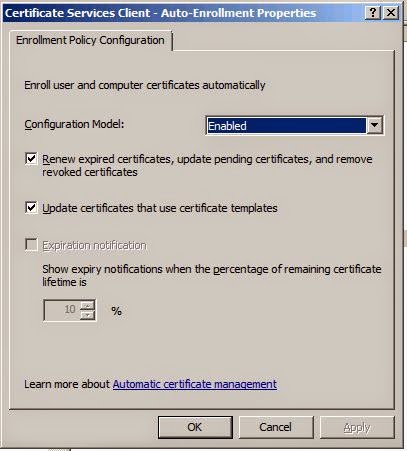
  3. Modify your GPO to enable the PKI policies for auto-enrollment
    Enabling the Computer Configuration > Windows Settings > Security Settings > Public Key Policies > "Certificate Services Client - Auto-Enrollment Settings" GPO

On the Mac (domain-joined)
  1. Flush the cache with adflush (or wait the cache flush interval)  [sudo adflush]
  2. Refresh the group policies (with adgpupdate) or wait for the GP refresh interval
  3. Verify the Certificates on the Keychain Access app.

Video Lab