Showing posts with label Centrify Suite 2014. Show all posts

Wednesday, February 11, 2015

Mac OS X Extras: Using Centrify and AD GPOs to Manage Portable Home Directories

Background

In OS X it is possible to set up a mobile user account that provides synchronized home folders, one on your Mac and one on the network account server. With Centrify, these "portable home directories" can leverage the user's existing Windows home directory to consolidate information.  Centrify allows the use of AD Group Policy to manage Portable Home Directories.

Assuming you have a Centrified MacOS X system:

Planning

At a high level, these things need to be thought out:
  • Windows home directories:  There are countless resources on this topic.  Home folders have to be created, and then assigned to users.  Keep in mind permissioning as well.
  • Understand the version(s) of OS X in your environment and the mobility settings behavior:  Apple has modified the implementation of mobile accounts over several versions.  The advantage is that Centrify provides a GPO that considers multiple versions of the OS:
  • Correct GPO scoping:  In this example we use loopback processing, however, based on your deployment, you may have multiple GPOs that apply to different AD principals.

Implementation
  1. Open GPMC and edit the Centrify GPO for OS X systems.
  2. On the left pane, navigate to "Computer Configuration > Policies > Centrify Settings > Adclient Settings" and in the right pane double click the "Enable Auto Zone user home directory (Mac OS X)"  and enable it.  This GPO modifies the auto.schema.use.adhomedir parameter in the /etc/centrifydc/centrifydc.conf file.
  3. Navigate to "User Configuration > Policies > Centrify Settings > OS X Settings >   Mobility settings" and in the right pane double click the "Use version specific settings" GPO and enable it.
  4. Based on the version of OS X that you have (in my example Mavericks 10.9) go to the corresponding folder (e.g. Mac OS X 10.8/9 settings) and enable the "Configure mobile account creation" - set it to enabled and check the "Create mobile account when user logs into the network"  check-box.
  5. To make sure the GPO is refreshed on the Mac OS X client, just run the adgpupdate command.
Verify
  1. On a Windows system with Active Directory Users and Computers (ADUC), open your test user account's properties and go to the Profile tab.  Make sure the home folder is set up appropriately for your environment.
  2. Sign-in to your Centrified OS X system, you'll see the following:
    Upon login, the user is prompted to create their portable home directory.
Adjust

Adjustments will be based on your environment.  Here are some general items:
- What happens when accounts expire?  (should mobile home directories be deleted?)
- Home folders:  what items will be skipped? What items will be explicitly synchronized?
- Synchronization settings:  By default every 20 minutes automatically.
- Preference Sync rules, etc.


Lab Video

Sunday, September 21, 2014

Utilities: adcert - a UNIX/Linux/Mac Microsoft CA PKI client

Background

Public Key Infrastructure (PKI) is the key building block for many IT capabilities and has been around for a long time.  It is poorly understood.  Let's start by defining some key terms:

PKI - Public key infrastructure (or standard x.509) defines the infrastructure, policies and usage of digital certificates.

Digital Certificate - a digital file pair that allows us to implement capabilities like
  • confidentiality - making sure data stays secret (at rest and in transit) 
  • integrity - making sure a message has not been tampered with in transit
  • non-repudiation - making sure that a party is who they say they are

Certification Authority:  A trusted computer that governs the policies, issuance, revocation and workflow of digital certificate operations.  There are Root CAs, Intermediate CAs, and Registration Authorities.  These roles (although NOT recommended) can be satisfied by a single system.

Certificate Policies:  Define how a certificates is going to be used, issued, revoked, etc.
Certificate Revocation:  When a certificate is revoked (e.g.  user is disabled, or the computer role changes, certificate expires or is replaced), the revocation protocol is used.  The legacy protocol is certificate revocation lists (CRLs), this has been replaced by the Online Certificate Status Protocol (OSCP).

PKI is all about the Trust Model and the standard as of how certificates are going to be handled.  My advice is that standing a CA in an enterprise is a process that should not be taken lightly.  The technology is the easy part.

For a great blog on PKI from the Microsoft PKI experts, go here:  http://www.css-security.com/category/public-key-infrastructure/

Challenge:  Managing the Lifecycle

Once a PKI infrastructure is established, in a Windows environment the lifecycle of issuing, revoking, renewing and provisioning certificates is very simple:  It can be done via self-service or with workflow, but we'll focus on the automatic method - using Group Policies.

It's all about simplicity:  The group policy client will check if either the user or computer needs a certificate, the PKI client will do the rest.  If a computer belongs to an OU that has a GPO for PKI certificates, there's a usable certificate template and the right permissions are in place, the certificate will be issued and provisioned to the computer.  Depending the policy, a few weeks before the certificate is revoked, the certificate will be renewed.

We already outlined these steps with the Mac platform.

adcert:  Centrify's hidden gem

For any PKI expert, adcert is a gem.  Why?  The variability of UNIX and Linux platforms and the evolution of them have not produced several basic standards as of how certain things are going to be done.  Since Centrify focuses in maximizing the investment in Active Directory with the Centrify Suite the answer is simple:  Use the Microsoft CA.

adcert is an Active Directory PKI client that works on Unix, Linux and Macs.  It also can be combined with Group Policies so the lifecycle can be managed the same way as in Windows.

adcert must be run as root and it exists in /usr/share/centrifydc/sbin.  Certificates (CRLs,  are placed in the /var/centrify/net/certs folder.
Some key switches:

-e  enroll certificates for this computer
-u <user>  - retrieve the certificates for the user.  In UNIX/Linux user GPOs are not enabled by default.
-m retrieve certificates for the computer. There has to be a usable certificate.

Example - to enroll the computer-based certificates for a computer:

$ dzdo /usr/share/centrifydc/sbin/adcert -e -m -V
Certificate AutoEnrollment for suse1$@CORP.CONTOSO.COM in domain CORP.CONTOSO.COM
Retrieved 17 templates with client or server authentication
Check template Administrator
Check template Centrify-Autoenroll
Check template Centrify-Autoenroll-Macs
    autoenrollment is allowed
Check template ClientAuth
Check template DomainController
Check template DomainControllerAuthentication
Check template KerberosAuthentication
Check template MacAutoenroll
    autoenrollment is allowed
Check template Machine
Check template OfflineRouter
Check template RASAndIASServer
Check template SmartcardLogon
Check template SmartcardUser
Check template User
Check template UserSignature
Check template WebServer
Check template Workstation
2 templates found with autoenrollment set
Checking certificate template Centrify-Autoenroll-Macs ...
    certificate and private key exist on computer
    revision (100) matches value in template
    expiration is Mon Sep 21 13:00:58 2015 GMT
    certificate public key matches private key
    No OCSP url in AIA section of certificate.
    ocsp operation not performed
    certificate is valid
Checking certificate template MacAutoenroll ...
No issuing CA found for template MacAutoenroll.
No CA's found for all templates requiring new/updated certificates: [MacAutoenroll].
1/1 templates requiring a new certificate could not have one issued.

The only usable template is the one I set up for Mac Autoenrollment in a previous lab.  The contents of the /var/centrify/net/certs shows:

$ ls -l
total 12
-r--r--r-- 1 root root 2069 2014-09-21 09:10 auto_Centrify-Autoenroll-Macs.cert
-r--r--r-- 1 root root 3357 2014-09-21 09:10 auto_Centrify-Autoenroll-Macs.chain
-r-------- 1 root root 1671 2014-09-21 09:10 auto_Centrify-Autoenroll-Macs.key
dzdo cat auto_Centrify-Autoenroll-Macs.cert
-----BEGIN CERTIFICATE-----
MIIFyjCCBLKgAwIBAgIKIiSOLwAAAAAAHDANBgkqhkiG9w0BAQUFADBaMRMwEQYK
CZImiZPyLGQBGRYDY29tMRcwFQYKCZImiZPyLGQBGRYHY29udG9zbzEUMBIGCgmS
JomT8ixkARkWBGNvcnAxFDASBgNVBAMTC2NvcnAtREMxLUNBMB4XDTE0MDkyMTEz
MDA1OFoXDTE1MDkyMTEzMDA1OFowITEfMB0GA1UEAxMWc3VzZTEuY29ycC5jb250
b3NvLmNvbTCCASIwDQYJKoZIhvcNAQEBBQADggEPADCCAQoCggEBANCZDHWJaHKR

Understanding the benefits

The key here is process consolidation and cost savings, especially for internal certs.  The Microsoft root CA is trusted by all domain-joined computers, this means that Unix, Linux and Mac computers can easily participate in getting their own SSL, 802.1x, Code Signing and other types of certs;  all with a single infrastructure and consolidated process.  That is power.

Video - Using adcert (5:18)


Monday, September 15, 2014

Business Problems: Leveraging UNIX-enabled AD Groups and Kerberos to Control Unix/Linux/Mac Access to a Windows Share

Background

In the previous post we discussed how to leverage the Kerberized environment provided by Centrify's UNIX/Linux client and the computer's AD account to access a read-only Windows (CIFS) share. By leveraging Kerberos, the mount command (or filesystems table) does not have to use a cleartext password.

Windows (CIFS) shares are all over the Enterprise (for files and printers) and most likely a read-only share is not a very practical example, however, a departmental share that is used by a workgroup to share files is much more common.  This time, we will implement an example.

The Marketing Share

In our mock example we have a share in APP1 set for the Marketing department.  Both Elaine and J.Peterman are members of this department, however they consistently access these shares from OS X, Unix and Windows machines.  Today a Marketing Share Access AD group is used to control access by way of memberships.

Requirements:


  • Marketing users should have the ability to exchange files (read/write)
  • The current heterogeneous environment consists of Windows, Mac OS X and UNIX/Linux stations
  • Users should be able to access the information from any type of platform
  • Controlling access to the Windows share should not deviate from the current process.
  • Users should alingn with the security policy and don't use cleartext passwords when mounting CIFS shares.

Challenges:

  • This would not be an issue in a homogeneous environment
  • Identity is key, UNIX identities should be uniform across platforms (for users and groups)
  • Users should not have access to the root account to use the mount command

The Proposed Solution:

  • Centrify the non-Windows platforms  (Mac OS X, Unix/Linux) - this provides the AD Integration, Kerberos environment and Privilege Elevation
  • Leverage a common UID/GID scheme by leveraging Zones and the Autozone
  • UNIX-enable the Matkeing Share Access AD group.
  • On UNIX Platforms, allow the Marketing users to use the mount command with privileges


Video Labs

Lab Part I - Initial Setup (13.30 min):  https://www.youtube.com/watch?v=flp4L200o4c 
Lab Part II - Verification (11 min):  https://www.youtube.com/watch?v=M-fdtZeYYtk 

Elaine's mount command (CentOS 6.5):
dzdo mount -t cifs //app1.corp.contoso.com/marketing /mnt/share -o sec=krb5,user=elaine.benes,uid=1149240407,gid=99998,group=marketing-share-access,umask=0002,file_mode=0775,dir_mode=0755 --verbose
Share Permissions:
(this can be improved since the rest of the world would get read access given that ACL)
Marketing Share - Permissions.jpg
NTFS Permissions:
Marketing NTFS - Permissions.jpg
Role created for Marketing Users
Marketing - mount command.jpg

We can improve on this by using Automount to access the user's Windows home.

Friday, August 29, 2014

Begin Synergy: Suite 2014.1 is here!

I'm very excited about the new update to Centrify Suite 2014.  This is a maintenance update that brings in support for RHEL7 and Debian 7.5, 7.6 and derivatives of these popular platforms. It includes additional updates, but what really makes it exciting to me is a feature available in the agent for Mac OS X called Combo Join.

Combo join marks an interesting milestone that affects this blog.  The merging of Centrify on-premise and Cloud offerings.  Combo join addresses the needs of employees with the top-of-line AD integration and Bring Your Own Mac Scenarios for third parties (like contractors or partners).

A simple check-box = more management capabilities

Combo-join means having the ability to register a Mac both as an AD domain member and with the Centrify Cloud Service.  This allows for two management possibilities:

  • The AD Group Policy-based Centrify agent GPOs (400+)
  • The Centrify Cloud Service policies that can be delivered via GPOs or via the cloud.
Architecturally they are different, one uses the mappers and the other users profile manager.  Combo join is a simple check-box that extends the AD Join assistant:

Once joined to the cloud service, a profile is delivered that permits management via the cloud:


This means that now both IT and end-users (via the Centrify User Portal) can perform device management along with their iOS and Android devices and IT will be able to deliver configuration management in a different vehicle without requiring a hard domain join.

Users will be able to perform self-service device management
IT will have more flexibility delivering configuration management

Why is this a game changer?

From this point on, we need to include Centrify User Suite content in this blog and if I'm correct, this is just the beginning.  Part of the reason why Centrify solutions are so easy to implement and are so cohesive is because they are developed in-house.  Not having to deal with Frankenstein-like solution packages like some of the traditional vendors translates into faster deployments and an easier learning curve.
 
Expect a Cloud section with info about Server Suite plus sections on synergy between Mac, Server and User Suites.

Friday, July 4, 2014

Mac OS X Extras: Computer Certificate Auto-enrollment

Background

Digital Certificates have an important place in a properly managed enterprise.  From an infrastructure perspective, they can enhance authentication and provide encryption for Ethernet and Wifi Networks.
Centrify for Mac OS X has built-in capabilities to enable 802.1x authentication leveraging Group Policy but it does require that the computer has a digital certificate.

PKI Disclaimer:  As in all PKI-related posts and videos, I make the caveat that Public Key Infrastructure is no joke.  There are policy, people, process, security and technology implications to your enterprise, so all PKI deployments need to provide a high-level of assurance.  You may have landed here due to a google search or reference, feel free to use these posts for testing purposes, but again, when it comes to PKI, any production deployment should conform to best practices.

Centrify uses GPOs to configure computer or user-based 802.1x settings on the Mac OS X platform

Configuring Computer AutoEnrollment for Mac OS X

The Centrify adclient is capable of leveraging Windows certificate auto enrollment with the Microsoft CA. The basic steps are:

On the AD side (with a Domain or Cert Admin)
  1. Configure the certificate template based on your needs (using the Certificate Templates MMC)
    • Subject  (typically common name based on the User Principal Name)
    • Security (set it to an AD group containing your Mac Systems and check to Enroll and AutoEnroll)
    • Extensions (add what you need)
      If using it for 802.1x - usage should be Client and Server Authentication.
  2. Configure your CA to issue Certificates based on that template (using the Certificate Authority MMC)
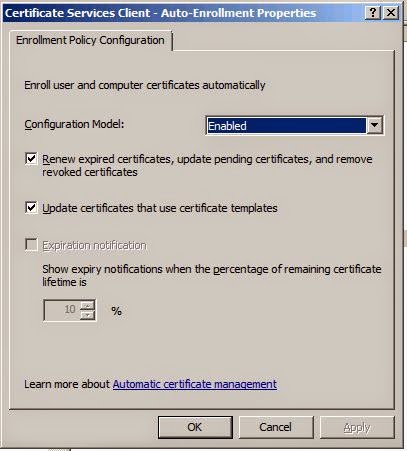
  3. Modify your GPO to enable the PKI policies for auto-enrollment
    Enabling the Computer Configuration > Windows Settings > Security Settings > Public Key Policies > "Certificate Services Client - Auto-Enrollment Settings" GPO

On the Mac (domain-joined)
  1. Flush the cache with adflush (or wait the cache flush interval)  [sudo adflush]
  2. Refresh the group policies (with adgpupdate) or wait for the GP refresh interval
  3. Verify the Certificates on the Keychain Access app.

Video Lab

Wednesday, April 23, 2014

Labs: Mac OS X Extras : Local User Migration

Local User Migration


The Centrify Mac Forum does a great job at explaining how account migrations work:
http://community.centrify.com/t5/Express-for-Mac-Tips-and-Tricks/Understanding-Account-Migration-on-Centrify-for-Mac-OS-X/ba-p/11510

Labs: Mac OS X AD Integration with Centrify Suite 2014

Centrify Suite 2014 Mac Integration Playlist


This playlist (47 minutes total) covers the requirements for the Mac OS Scenario outlined in the previous post.

http://centrifying.blogspot.com/2014/04/enter-mac-extending-2014-evaluation.html

Enjoy!

R.P

Tuesday, April 22, 2014

Enter the Mac - Extending the 2014 Scenario with Mac OS X

In a previous post, we discussed a UNIX/Linux scenario with Centrify Enterprise Edition; in this post and in an upcoming playlist, we'll be integrating a couple of Mac OS X systems.  On-premise (or Enterprise) systems tend to have different requirements from BYOD (Bring Your Own Device) Macs.

Requirements for On-Premise Mac Systems

AD Integration


  • Allows all Domain Users to access Mac OS clients with their AD Credentials
  • Leverages AD natively, no schema extensions or software in domain controllers
  • Solution does not synchronize identities or passwords
  • Mac users can be controlled from AD  (enabling/disabling, logon hours, etc.)
  • AD Security policy is enforced Mac Platforms
  • Kerberos SSO Access to Domain protected resources (directory, shares, printers, etc)
  • High-availability:  Users should have access if AD is not available

Security Configuration Items


  • Governance:  Mac Administrators shall add/move/remove Mac Computers 
  • The practice of sharing a "mac administrative account" (shared account) should be eliminated
  • The Password policy defined in AD shall be enforced in all Macs
  • All users shall have a screen saver enabled within 10 minutes of inactivity
  • Users shall not be able to launch the Terminal Utility
  • Logon Banner aligned with corporate requirements
  • Users shall not be able to launch the iCloud System Preference
  • The firewall should be always on
  • iChat and iTunes Music Sharing shall be disabled
  • FileVault2 Encryption shall be enforced centrally
  • Access to external drives shall be password protected
  • Macs should be able to leverage GPOs and the Microsoft CA to auto-enroll Computer Certificates.

Computer Configuration Items


  • Domain Suffix and DNS Settings should be configured centrally
  • ARD, FTP, Web Services and SSH access should be configured centrally
  • Fast User Switching disabled.

User Configuration Items


  • Users home directories should be mapped/mounted automatically on Macs
  • The shared network folder should be mapped/mounted automatically
  • The dock should be placed on the left of the screen by default
  • The network printer should be provisioned automatically

Modified Scenario Diagram


Centrify Suite 2014 Mac Integration Playlist

This playlist (47 minutes total) covers the requirements for the Mac OS Scenario outlined in the previous post.

Tuesday, March 25, 2014

Labs: Centrify for Servers Enterprise Edition 2014 - Speedy Evaluation

I've posted this video playlist:


It covers Centrify Enterprise Edition 2014 and provides a full product evaluation experience for security access controls (Authentication, Authorization, Auditing).  Here are the evaluation objectives.

Category 1:  AD Integration and Authentication - Standard Edition

  1. Does not require any schema extensions or software loaded in DCs.
  2. Not all AD users have access to UNIX/Linux systems by default
  3. Solution uses Standards and Frameworks (LDAP, Kerberos, PAM, NSS)
  4. Solution does not synchronize identities or passwords
  5. UNIX-enabled AD users can be controlled from AD  (enabling/desabling, logon hours, etc.)
  6. Integrating UNIX/Linux systems can be performed from the GUI or command line.
  7. AD Security policy is enforced in UNIX/Linux Platforms.
  8. Multiple UNIX identities can be assigned to the same AD User
  9. UNIX secondary group memberships can be managed from Active Directory as well
  10. Authentication can be streamlined with SSO mechanisms.
  11. Provisioning/Deprovisioning of UNIX users and groups can be automated.
  12. Filer integration (Samba or NFS) - identity consistency for files and folders
  13. High-availability:  Users should have access if AD is not available.

Category 2:  Access and Privilege Management - Standard Edition

  1. Systems can be grouped using different criteria to enforce access.
  2. Access can be limited based on groups of systems defined above (role-based access control)
  3. Roles can be defined to control how the user signs into the system and the privileges that can be granted (Role-based access privileges)
  4. Provides mechanisms to verify who used their privileges
  5. Provides the ability to enforce separation of duties (operations vs. governance)
  6. It's intuitive to find out who has access to what system and what can they do

Category 3:  Advanced Auditing - Enterprise Edition

  1. Provides a detailed view of user's activities (user, system accessed, duration, client computer, activities)
  2. Provides a contextual view of the actions performed (replay capability)
  3. Provides the ability to search sessions based on queries.
  4. Provides the ability to view when privileges are used across systems

Environment


Thursday, February 27, 2014

Quick look at Centrify Suite 2014

Hello All,

I've been very busy ramping up with some new product releases but I'd like to highlight some of the new features of Centrify Server Suite 2014 that was announced this week at the RSA Conference.

Some highlights include:
  • More OS platforms supported (highlights include RHEL/CentOS 6.5, which worked but had not been listed because they hadn't been extensively QA'd)
  • PowerShell Module for Access Manager:  over 75 cmdlets open the possibility for more automation coming from the Windows side.  The SDK used to be the only avenue in Windows;  in UNIX we are all set with the CLI tools and adedit.
  • Audit Events now report PAM or Centrify-enhanced sudo events:  This makes for a more robust audit infrastructure and alerting combined with the capture and replay capabilities.
  • Windows Privilege Management Match Criteria & Application Rights Builder:  This capability accelerates windows application rights creation and increases the filtering granularity.
  • New Built-in Windows application rights:  Pre-canned rights for common Windows applications also accelerate role creation.
Demo Video

Some Screenshots:
DZWin - Application Match Criteria
DZWin - Import from Running Process
Centrify sudo audited events on Audit Analizer


Here's a list of the PowerShell Commands: 
  1. Cmdlet          Add-CdmApplicationRight
  2. Cmdlet          Add-CdmCommandRight
  3. Cmdlet          Add-CdmDesktopRight
  4. Cmdlet          Add-CdmNetworkAccessRight
  5. Cmdlet          Add-CdmPamRight
  6. Cmdlet          Add-CdmSshRight
  7. Cmdlet          Export-CdmData
  8. Cmdlet          Get-CdmApplicationRight
  9. Cmdlet          Get-CdmCommandRight
  10. Cmdlet          Get-CdmComputerRole
  11. Cmdlet          Get-CdmCredential
  12. Cmdlet          Get-CdmDesktopRight
  13. Cmdlet          Get-CdmEffectiveGroupProfile
  14. Cmdlet          Get-CdmEffectiveUnixRight
  15. Cmdlet          Get-CdmEffectiveUserProfile
  16. Cmdlet          Get-CdmEffectiveWindowsRight
  17. Cmdlet          Get-CdmGroupProfile
  18. Cmdlet          Get-CdmManagedComputer
  19. Cmdlet          Get-CdmNetworkAccessRight
  20. Cmdlet          Get-CdmNisMap
  21. Cmdlet          Get-CdmNisMapEntry
  22. Cmdlet          Get-CdmPamRight
  23. Cmdlet          Get-CdmPreferredServer
  24. Cmdlet          Get-CdmRole
  25. Cmdlet          Get-CdmRoleAssignment
  26. Cmdlet          Get-CdmSshRight
  27. Cmdlet          Get-CdmUserProfile
  28. Cmdlet          Get-CdmZone
  29. Cmdlet          Import-CdmData
  30. Cmdlet          New-CdmApplicationRight
  31. Cmdlet          New-CdmCommandRight
  32. Cmdlet          New-CdmComputerRole
  33. Cmdlet          New-CdmDesktopRight
  34. Cmdlet          New-CdmGroupProfile
  35. Cmdlet          New-CdmManagedComputer
  36. Cmdlet          New-CdmMatchCriteria
  37. Cmdlet          New-CdmNetworkAccessRight
  38. Cmdlet          New-CdmNisMap
  39. Cmdlet          New-CdmNisMapEntry
  40. Cmdlet          New-CdmPamRight
  41. Cmdlet          New-CdmRole
  42. Cmdlet          New-CdmRoleAssignment
  43. Cmdlet          New-CdmUserProfile
  44. Cmdlet          New-CdmZone
  45. Cmdlet          Remove-CdmApplicationRight
  46. Cmdlet          Remove-CdmCommandRight
  47. Cmdlet          Remove-CdmComputerRole
  48. Cmdlet          Remove-CdmDesktopRight
  49. Cmdlet          Remove-CdmGroupProfile
  50. Cmdlet          Remove-CdmManagedComputer
  51. Cmdlet          Remove-CdmNetworkAccessRight
  52. Cmdlet          Remove-CdmNisMap
  53. Cmdlet          Remove-CdmNisMapEntry
  54. Cmdlet          Remove-CdmPamRight
  55. Cmdlet          Remove-CdmRole
  56. Cmdlet          Remove-CdmRoleAssignment
  57. Cmdlet          Remove-CdmSshRight
  58. Cmdlet          Remove-CdmUserProfile
  59. Cmdlet          Remove-CdmZone
  60. Cmdlet          Set-CdmApplicationRight
  61. Cmdlet          Set-CdmCommandRight
  62. Cmdlet          Set-CdmComputerRole
  63. Cmdlet          Set-CdmCredential
  64. Cmdlet          Set-CdmDelegation
  65. Cmdlet          Set-CdmDesktopRight
  66. Cmdlet          Set-CdmGroupProfile
  67. Cmdlet          Set-CdmNetworkAccessRight
  68. Cmdlet          Set-CdmNisMap
  69. Cmdlet          Set-CdmNisMapEntry
  70. Cmdlet          Set-CdmPamRight
  71. Cmdlet          Set-CdmPreferredServer
  72. Cmdlet          Set-CdmRole
  73. Cmdlet          Set-CdmRoleAssignment
  74. Cmdlet          Set-CdmUserProfile
  75. Cmdlet          Set-CdmZone
Keep tuned in!!

R.P